For Mac · macOS 14+
Find out what System Data really is.
Storage settings shows one grey bar and stops there. greyspace names every cause, labels it for safety, and shows what it can't explain as Unattributed.
Launch price: $9.99 until 2 Dec, then $14.99. One-time, 2 Macs, no subscription.
- Files go to the Trash
- Every command shown first
- No account
- Pay once, 2 Macs

One grey bar in. Named causes out.
Storage settings
System Data · 120 GB. No breakdown, nothing to click.
greyspace
- App data in Library26 GB
- Other system files21 GB
- Caches and logs17 GB
- Startup and recovery13 GB
- Swap and sleep image12 GB
- Spotlight index9 GB
- Local snapshots8 GB
- Apple downloads6 GB
- Unattributed8 GB
Sizes are an example. Yours will differ: that's what greyspace measures.
How it works
Measure. Explain. Fix what you approve.
- 1
Measure
One scan works out System Data the way Storage settings does. Compare with Storage settings… puts Apple's estimate next to it.
- 2
Explain
Each cause is named, measured and labelled for safety. Whatever isn't explained stays visible as Unattributed.
- 3
Fix what you approve
Pick items, review exactly what would go, confirm. Files go to the Trash, then greyspace measures again.


- A cause up close. What it is, its safety label and what's inside. Only the items you pick move to the Trash.
- The review, before anything happens. The exact files and sizes, what you'd notice, and where they go.
More than a number
It keeps watch, too.
What's safe to clear, added up
Only items labelled Safe to remove that would go to the Trash. And an honest share of how much greyspace could explain.
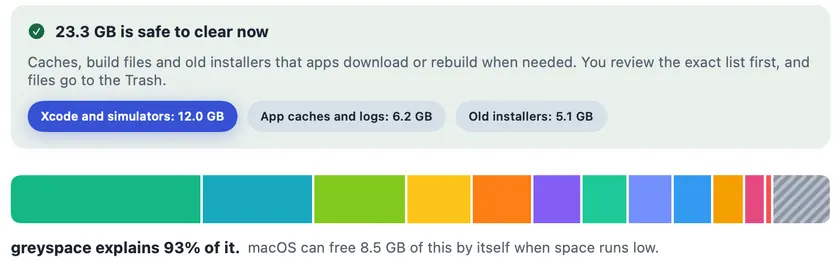
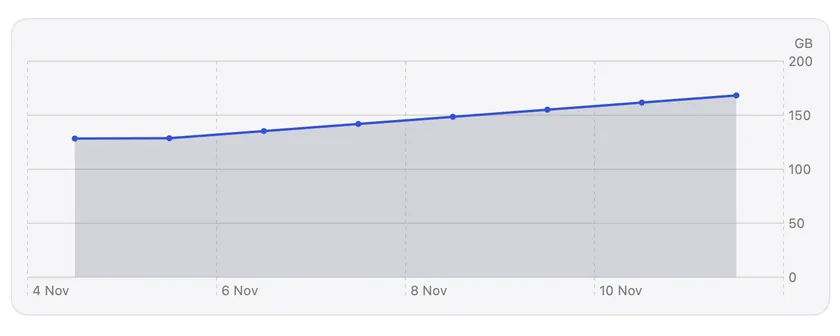
Growth watch
One measurement a day, kept 90 days, so you see what grew. An optional alert when System Data jumps.
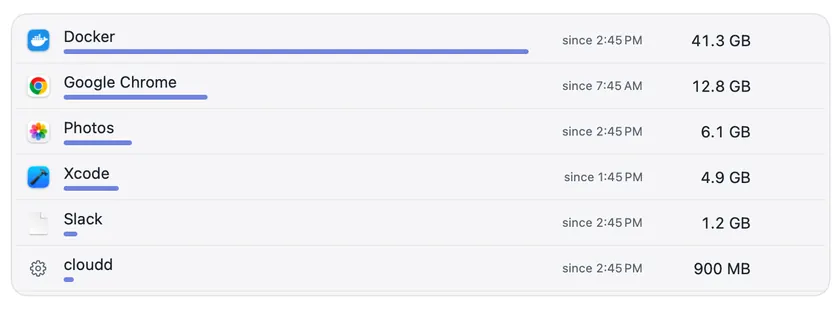
Who's writing
The apps writing most to disk since they started. Explained, never stopped for you.
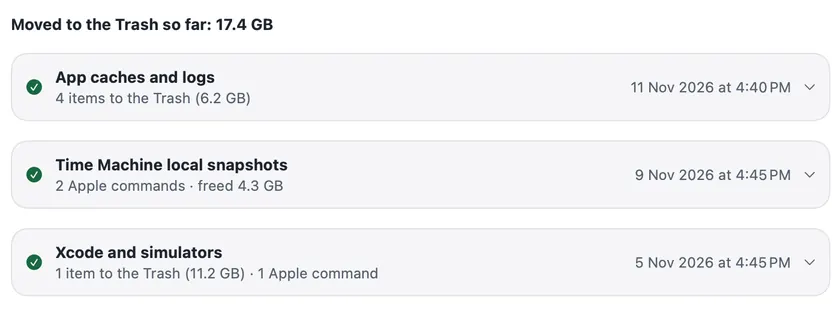
History
Every fix with its date, paths and sizes. Put files back from the Trash until you empty it.
Menu bar
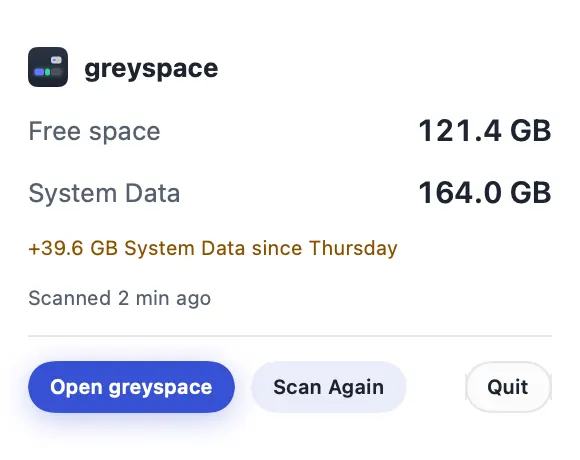
Optional and off at first: free space and System Data at a glance.


What's inside System Data
Every cause, and whether it's safe.
- Safe to remove Nothing you need is lost.
- Comes back on its own macOS rebuilds or downloads it again when needed.
- Review first Some of it may matter to you. greyspace lists it so you can choose.
- Leave alone macOS needs it. greyspace explains it and doesn't touch it.
On our own test Mac, the causes people usually talk about made up only about a third of System Data, so greyspace measures much more. What we found
On our own test Mac, the causes people usually talk about (snapshots, the Spotlight index, swap, Apple downloads, backups, developer files, caches) made up only about a third of System Data. Most of the rest was app data in the Library folder, macOS's startup and recovery volumes and other system files, so greyspace measures those too. What's left over is shown as Unattributed.
App data in your LibraryReview first
What apps keep for you in your Library folder: settings, databases, offline files and downloads. Storage settings counts all of it as System Data, and on many Macs it's the biggest single part.
greyspace: Lists the largest folders by app, with Show in Finder. It doesn't remove them: this is the apps' own data, so greyspace tells you to clear it from inside the app, or by uninstalling the app.
~/LibraryOther system filesLeave alone
Files outside your home folder: shared app support, developer tools in /opt and /usr/local, system databases and the file version history. Some of these folders only an administrator can measure.
greyspace: Measures and lists them, and explains what they are. It doesn't remove them: most belong to macOS or to a tool you installed, and greyspace says to remove a tool with the tool that installed it.
/opt, /usr/local, /Library, /private/varApp caches and logsSafe to remove
Temporary files apps keep to work faster, and the logs they write. Apps re-create what they need. A single misbehaving app can write a lot of them.
greyspace: Shows the largest by app and moves the cache and log folders you pick to the Trash. Quit those apps first; they rebuild their caches the next time you open them. macOS's own temporary files are listed but left alone: a restart clears them.
~/Library/Caches and ~/Library/LogsmacOS startup and recoveryLeave alone
Hidden volumes macOS needs to start up, update itself and run Recovery. A downloaded macOS update also waits here until it installs.
greyspace: Measures each volume and explains it. Nothing to remove: installing a pending macOS update usually frees the update files kept here.
Preboot and Recovery volumesSwap and sleep imageLeave alone
When memory runs short, macOS moves some of it to swap files on disk. The sleep image holds your memory while the Mac sleeps. Both are part of how macOS works.
greyspace: Shows how much there is and why. Nothing to delete: a restart clears the swap files, and quitting apps that use lots of memory keeps them small.
/System/Volumes/VMSpotlight indexComes back on its own
The index that makes Spotlight search fast. It's usually a few gigabytes, but it can swell after a big migration, a macOS update or an index that went wrong, and Storage settings counts all of it as System Data.
greyspace: The index sits in a folder only an administrator can read, so measuring it takes your password: click Measure with password… and greyspace runs one read-only size check. If you decide to rebuild it, greyspace runs Apple's mdutil -E / after showing you the command. Search is incomplete for a few hours while macOS re-indexes.
/System/Volumes/Data/.Spotlight-V100Do it by hand: Why is my Spotlight index so big?Time Machine local snapshotsComes back on its own
With Time Machine on, macOS keeps snapshots of your disk on the Mac itself, so you can restore a file without the backup disk. They're meant to go after about a day or when space runs low; until then they count as System Data.
greyspace: Lists every snapshot with its date, then deletes the ones you pick with Apple's tmutil, after the standard macOS password prompt. They're deleted for good, not moved to the Trash, and the review says so. Your backups on the Time Machine disk are not touched.
tmutil listlocalsnapshots /Do it by hand: How to delete local snapshotsApple Intelligence and Apple downloadsLeave alone
Files macOS downloads for its own features: Apple Intelligence models, dictation and Siri voices, fonts, dictionaries and other assets. macOS protects these folders.
greyspace: Measures them and explains the setting that controls them. It doesn't remove them: the folders belong to macOS, so the safe way back is turning off the feature you don't use, and greyspace tells you which setting.
/System/Library/AssetsV2Do it by hand: Apple Intelligence storageiPhone and iPad backupsReview first
Full backups of your iPhone or iPad made by the Finder on this Mac. Old devices' backups, and several backups of the same device, often stay for years.
greyspace: Lists each backup by device and date and moves the ones you pick to the Trash. Keep the newest backup of a device you still use, unless it's also backed up to iCloud.
~/Library/Application Support/MobileSync/BackupXcode and simulatorsSafe to remove
If you build apps: build files (DerivedData), simulators, device support files and archives that Xcode keeps. They pile up with every Xcode and iOS version.
greyspace: Moves the build files and old device support you pick to the Trash (Xcode rebuilds them) and deletes simulators for iOS versions you no longer have with Apple's simctl. Archives are marked Review first, because you may need them later.
~/Library/DeveloperScreen saver and wallpaper videosComes back on its own
The moving aerial and landscape videos macOS downloads for the screen saver and wallpaper.
greyspace: Measures them and tells you how to let macOS remove them: pick a still wallpaper and a different screen saver, and macOS removes the videos it no longer uses. greyspace doesn't delete them itself.
/Library/Application Support/com.apple.idleassetsdDo it by hand: How to remove aerial videosDocker and virtual machinesReview first
Disk images of container and virtual machine apps. They grow as you use them and rarely shrink by themselves.
greyspace: Finds the disk images and shows their size. It doesn't remove them, because deleting the image deletes what's inside: greyspace tells you where in the app that made them to clean up.
Old installers and Mail downloadsSafe to remove
Disk images and installer packages you downloaded more than 30 days ago, old macOS installers, and attachments Mail saved when you opened them.
greyspace: Lists them, largest first, and moves the ones you pick to the Trash. Installed apps keep working without their installers, and Mail keeps the attachments in your mail.
Messages attachmentsReview first
Photos, videos and files sent and received in Messages. Storage settings counts these under Messages, not System Data, but they're often what people are looking for.
greyspace: Shows how much there is. It doesn't remove them: delete them in Messages or in Storage settings, so your conversations stay consistent on your other devices.
UnattributedWhat the causes don't explain, shown instead of hidden.
Whatever the measured causes don't explain, mostly folders only an administrator can read. Both Apple's number and greyspace's are estimates, so a remainder is always left; greyspace shows it instead of hiding it.
Open a cause to see what greyspace does about it. Prefer to do it by hand? The guides walk through each cause step by step.
Safety
Nothing is removed without showing you first.
A clean-up app should never leave you wondering what it just did. greyspace is built so that it can't.
A review before anything happens
The exact files and sizes, or the exact command, before each fix. Nothing runs until you confirm.
Files go to the Trash
Put them back from the Finder if you change your mind. Deleted snapshots, a rebuilt Spotlight index and removed simulators can't be put back, and the review says so first.
Four fixed commands
Only Apple's
tmutil(snapshots you pick),mdutil -E /(rebuild Spotlight),simctl(unavailable simulators) and a read-onlydu. Nothing you type or that's read from disk becomes part of a command.One password prompt per action
The standard macOS administrator prompt, with the command shown first. No helper installed in the background.
Full Disk Access, in plain words
Much of System Data sits in folders macOS keeps from apps. Without that permission greyspace could only guess.
- Reads folder sizes and file names, to measure each cause.
- Reaches folders macOS otherwise hides from apps, such as iPhone backups, Mail and Messages, and other apps' data.
- Never opens your documents, mail or messages to read them. Nothing is sent anywhere.
- Removes nothing on its own: every fix waits for your OK.
greyspace opens the right page for you. Switch it off any time under Privacy & Security › Full Disk Access.
Your disk stays yours
- Stays on your Mac. The scan, the results, the history and the growth watch.
- No account. Buy, paste your key, done.
- No tracking. No analytics, no ads, no crash reporter that phones home.
- Two network calls. The licence check, and a daily look for a new version you can switch off. Nothing about your disk is sent.
Pricing
Pay once. Use it on two Macs.
No subscription and no account. There's no free trial: if greyspace doesn't work on your Mac and we can't fix it, you get your money back.
Launch price $9.99 until 2 December 2026, 18:30 UTC, then $14.99.
After you buy: set up in a few minutes
- 1DownloadFrom the thank-you page, or with your key on the download page.
- 2Open itDrag it to Applications. If macOS stops it, click Open Anyway in Privacy & Security.
- 3ActivatePaste the licence key from your order email.
- 4Allow Full Disk Accessgreyspace opens the right page. Switch it on and the first scan starts.
greyspace
$9.99Regular price $14.99
Launch price: $9.99 until 2 Dec, then $14.99. One-time, 2 Macs, no subscription.
- Every feature, on 2 Macs
- Free updates for version 1
- No account, no subscription
- Refund within 7 days if it doesn't work on your Mac and we can't fix it
Secure checkout by Dodo Payments. Your licence key arrives by email and on the next page.
Sold only at tealmac.com. macOS 14 Sonoma or later.
Questions
Straight answers.
What is System Data on a Mac?
It's the part of Storage settings for everything that doesn't fit Apple's other categories. On most Macs much of it is app data in your Library folder, macOS's startup and recovery volumes and other system files, plus app caches and logs, swap, the Spotlight index, Time Machine local snapshots, Apple Intelligence downloads, iPhone backups and developer files. macOS shows it as one grey bar without saying what's in it. greyspace measures each of those causes, names them, and shows what's left as Unattributed.
Why is my System Data so big, even 100 or 200 GB?
Often one or two causes have grown: apps keeping a lot of data in your Library, a Spotlight index that ballooned after a migration, old iPhone backups, developer files or tools, or local snapshots that linger. The size alone doesn't tell you which, and that's the question greyspace answers for your Mac.
Is it safe to delete System Data?
Not all of it, and never blindly. Some causes are safe to remove, some come back on their own, some need a look first, and some (like swap) macOS needs. greyspace labels every cause, shows you exactly what it would remove or which command it would run, and does nothing until you confirm. Nothing is removed without showing you first.
Will waiting overnight or restarting fix it?
Sometimes. A restart clears swap files and temporary files, and macOS thins snapshots and some caches when it needs space. But a bloated Spotlight index, old backups or apps' own data stay until someone removes them. greyspace labels which of your causes come back on their own and which need a decision.
Do I have to erase my Mac to get the space back?
No. Erasing and reinstalling does clear System Data, but it costs you a day of setup. Finding the actual cause and dealing with just that is quicker and keeps everything else as it is.
How do I delete Time Machine local snapshots?
In Terminal, tmutil listlocalsnapshots / lists them and sudo tmutil deletelocalsnapshots <date> removes one. greyspace lists them with their dates and deletes the ones you pick with the same Apple tool, after the standard macOS password prompt. Deleted snapshots are gone for good (they don't go to the Trash). Your backups on the Time Machine disk are not touched.
Why is my Spotlight index so big, and is rebuilding it safe?
The index can swell after a migration, a macOS update or an indexing problem. Rebuilding it is safe: macOS makes a fresh one, and search is incomplete for a few hours meanwhile. Only an administrator can read the index folder, so greyspace measures it after you click Measure with password… and enter your password. If you choose to rebuild it, greyspace shows the command, mdutil -E /, and runs it after the password prompt.
How much storage does Apple Intelligence use?
Several gigabytes of models and assets, depending on your Mac and which features are on. greyspace shows how much is on your Mac and explains the setting that controls it. The folders are protected by macOS, so greyspace doesn't touch them: turning the feature off is the safe way to get that space back.
Can I remove the aerial screen saver videos?
Yes. They're downloaded videos, and macOS downloads one again if you pick it later. greyspace measures them and tells you the safe way: choose a still wallpaper and a different screen saver, and macOS removes the videos it no longer uses. The guide shows how to remove them by hand.
Why does greyspace need Full Disk Access?
Many of the folders that make up System Data are ones macOS keeps from apps unless you allow it, such as iPhone backups, Mail and Messages folders and other apps' data. Without Full Disk Access greyspace would have to guess. It reads sizes and file names only; it never opens your documents, and nothing is sent anywhere.
Does greyspace delete files permanently?
No. Files go to the Trash, not straight to deletion, and every fix is written to greyspace's history with the date, path and size, so you can put something back from the Trash. That also means the space is only free once you empty the Trash. Snapshots, the Spotlight index and unavailable simulators are handled by Apple's own tools, with the exact command shown before it runs; those can't be undone.
Will greyspace find all of my System Data?
It names as much as it can measure and shows the rest as Unattributed, honestly, instead of hiding it. The well-known causes alone usually don't add up: on our test Mac they were about a third, and app data, startup and recovery volumes and other system files explained most of the rest. Some folders only an administrator can read; Measure with password… sizes them and shrinks the remainder. Apple's System Data figure is an estimate too, so the two numbers rarely match to the gigabyte.
Which Macs and versions of macOS does it run on?
macOS 14 Sonoma or later, on Apple silicon and Intel Macs. Tested on macOS 26.
How much is it?
$9.99 once at launch, until 2 December 2026, 18:30 UTC, then $14.99. One licence works on 2 Macs, with no subscription and no account. There's no free trial: if greyspace doesn't work on your Mac and we can't fix it, you get a refund within 7 days.
Does greyspace send my data anywhere?
No. There's no account, no analytics and no tracking, and the scan never leaves your Mac. greyspace goes online only to activate and check your licence, and once a day to look for a new version (you can switch that off in Settings).
Know what's in the grey.
Find out what System Data really is, and get the space back safely. macOS 14 Sonoma or later.